


In this article, we will explain what it means to clear the cache, why this is essential to clean your cache, and how to clear it on your iPhone or android.
In this article, we will explain what it means to clear the cache, why this is essential to clean your cache, and how to clear it on your iPhone or android.
We’ve all spent hours scrolling on Instagram. Following your favorite accounts is one thing, but creating content is even better. Brunch pics, triumphant hikes, pet videos and more are all Insta-worthy – but if you notice your phone slowing down, Instagram might be the culprit.
Instagram stores your activity on the app to enhance user experience, but too much data can take up storage and slow down your device. If your Instagram storage is almost full, it’s probably because the app automatically saves your data in a cache – something most social media apps use.
If Instagram’s taking up too much space, you can quickly clear its cache. This guide will teach you how to clear Instagram’s cache on an iPhone and Android to bring your phone back up to speed.
A cache is a space that Instagram uses to store information automatically. That way, Instagram doesn’t have to dig to find frequented accounts or filters you use daily – it can retrieve it from the cache. If you’re frequently on the app, there’s probably a whole lot of information in there, which can slow down your phone.
Clearing a cache on Instagram means deleting that info to make more space. Don’t panic: clearing your cache won’t delete your account. Instead, it removes data you probably don’t need.
How often you clear your Instagram cache is up to you. You shouldn’t have to do it frequently, but it’s a good idea if you notice your phone’s low on storage or slower than usual.
Clearing your cache on iPhone only takes a few steps – you just have to delete and reinstall the app. Here’s an in-depth look at clearing your Instagram cache on iOS.
1. Find the Instagram app through your homepage or search for the app through the search bar.
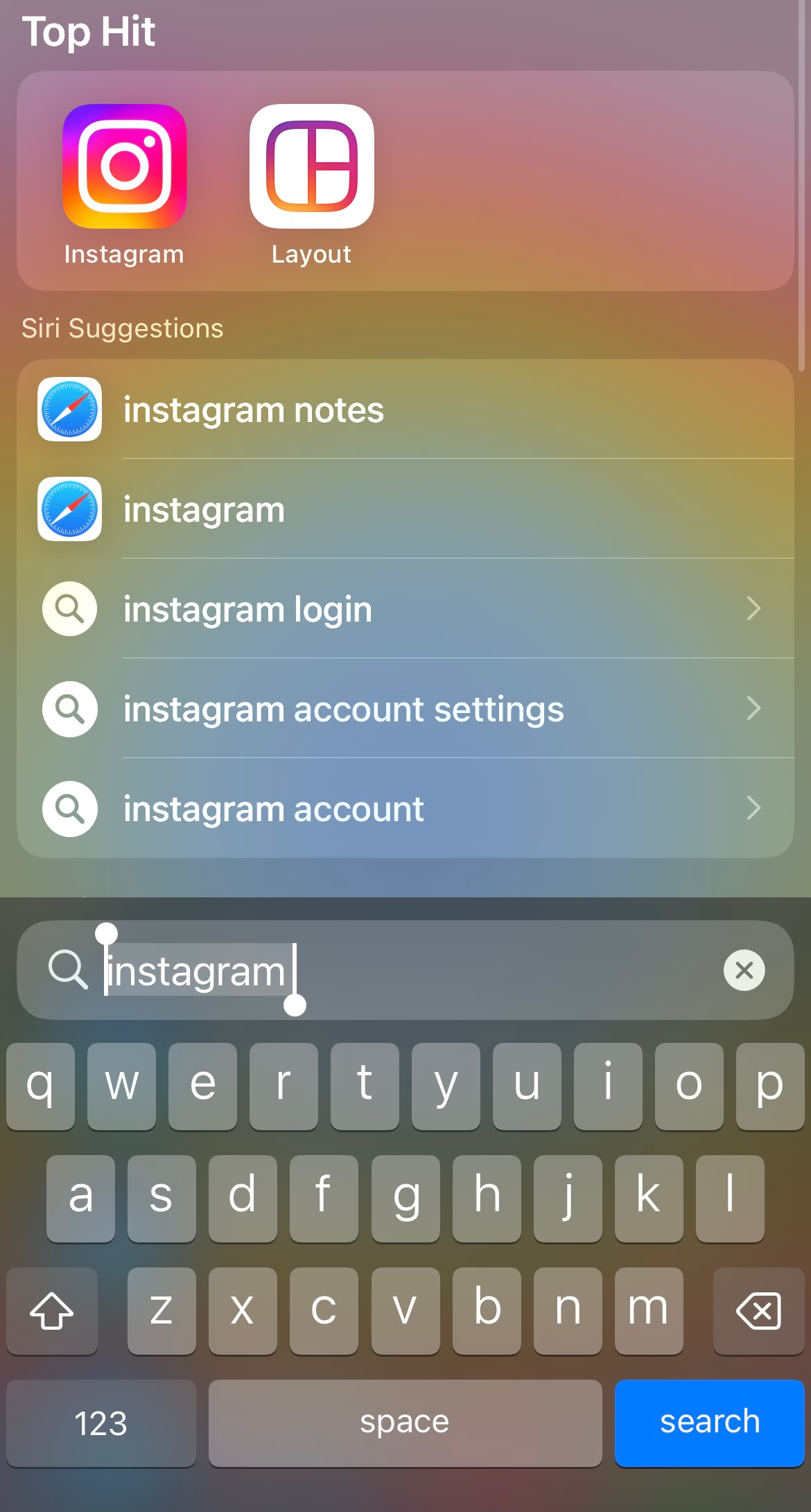
2. Tap and hold the app for several seconds until the icon menu appears.
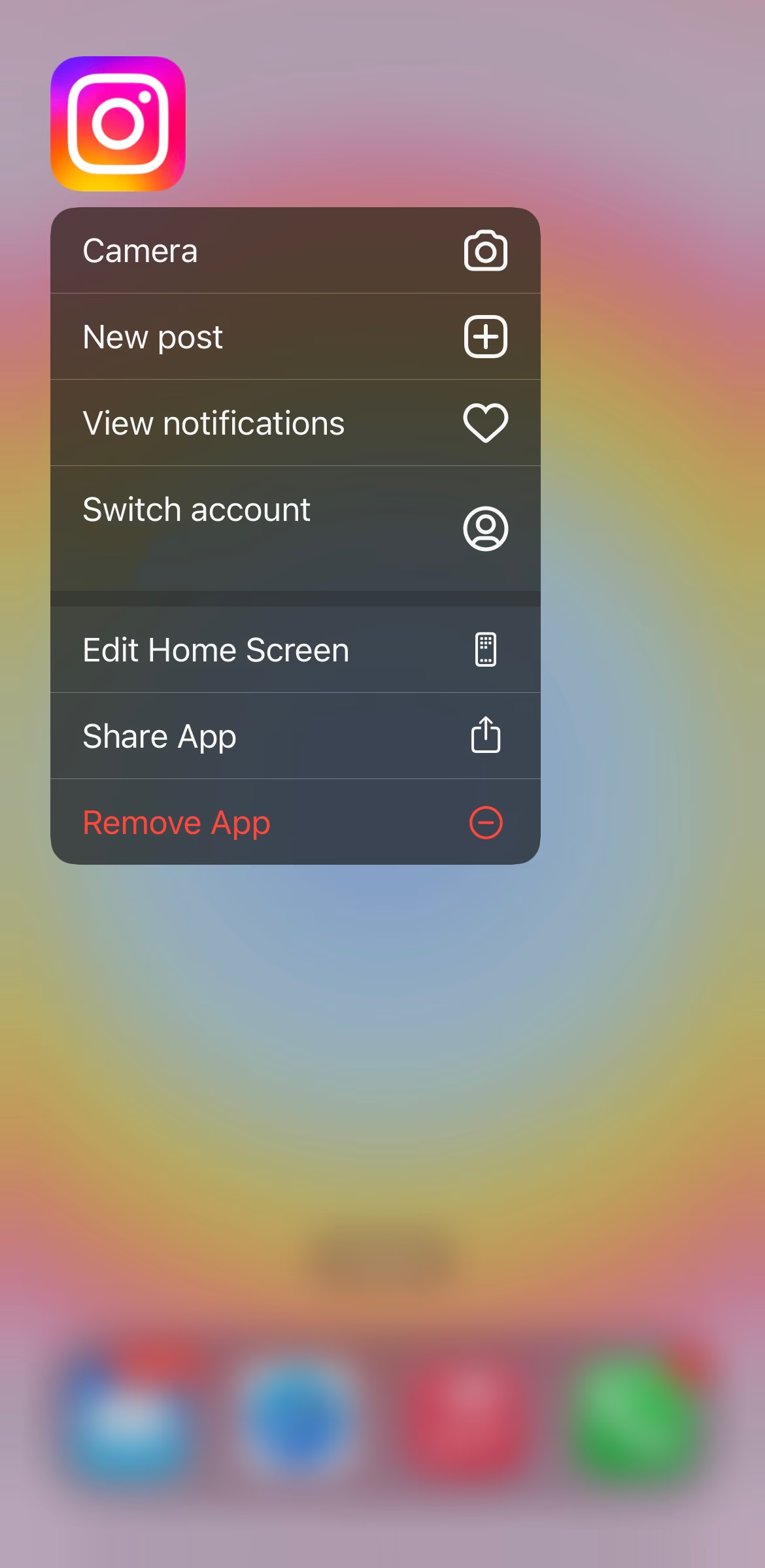
3. Select “Remove App” on the menu. If you don’t see this option, click the minus symbol in the top right corner of the app icon. Remember: deleting the app won’t delete your account. Just make sure you remember your login information for later.

4. Confirm “Delete App” when your phone prompts you.
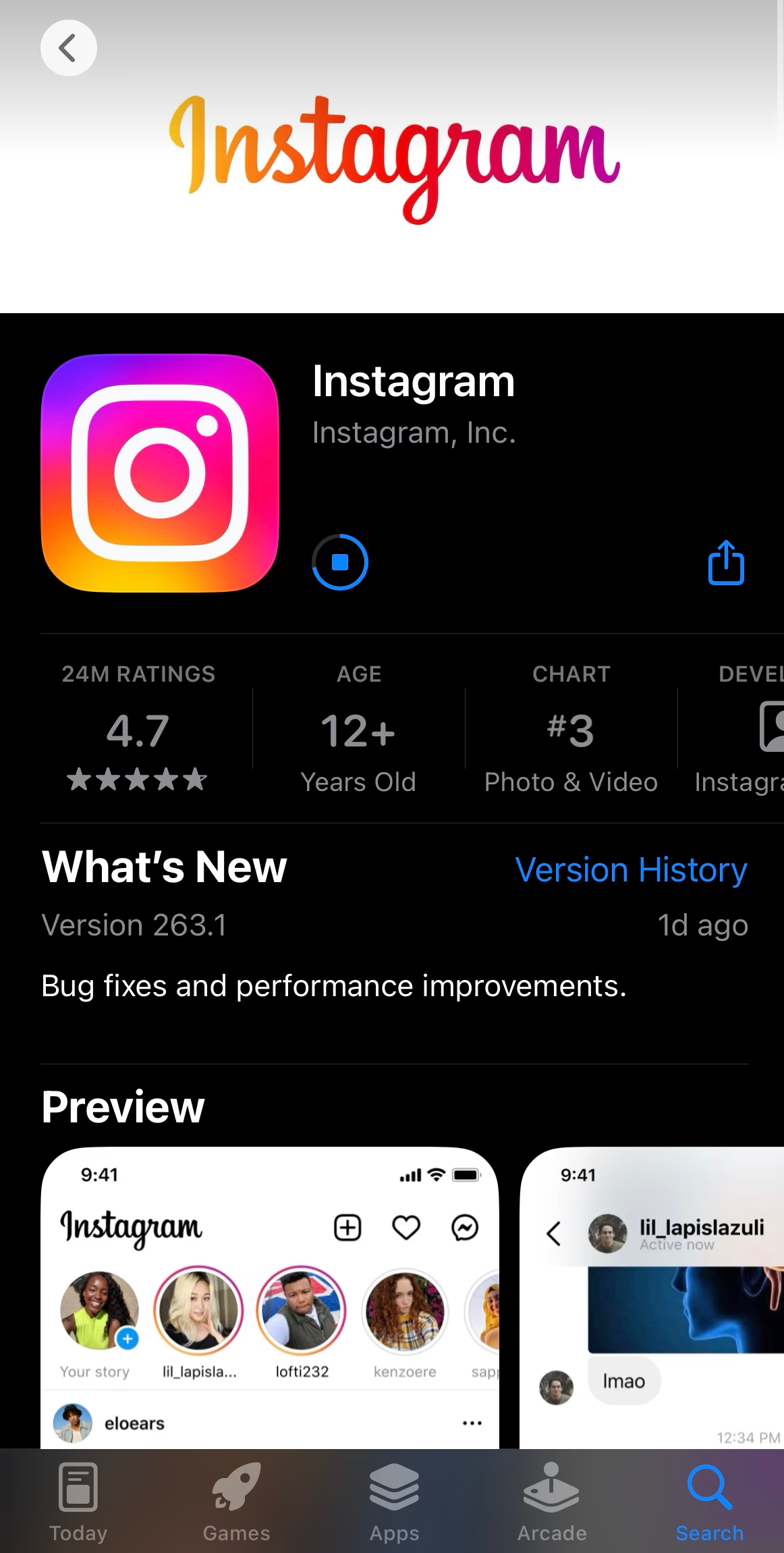
5. Go to the App Store and reinstall Instagram. Then login into your account, and your cache has been cleared.
If you have an Android, the process to clear cache files is slightly different because it all happens in your settings. You can also see how much data is already in your cache. Here are the steps to clear your Instagram cache on an Android.
1. Open “Settings” on your phone.

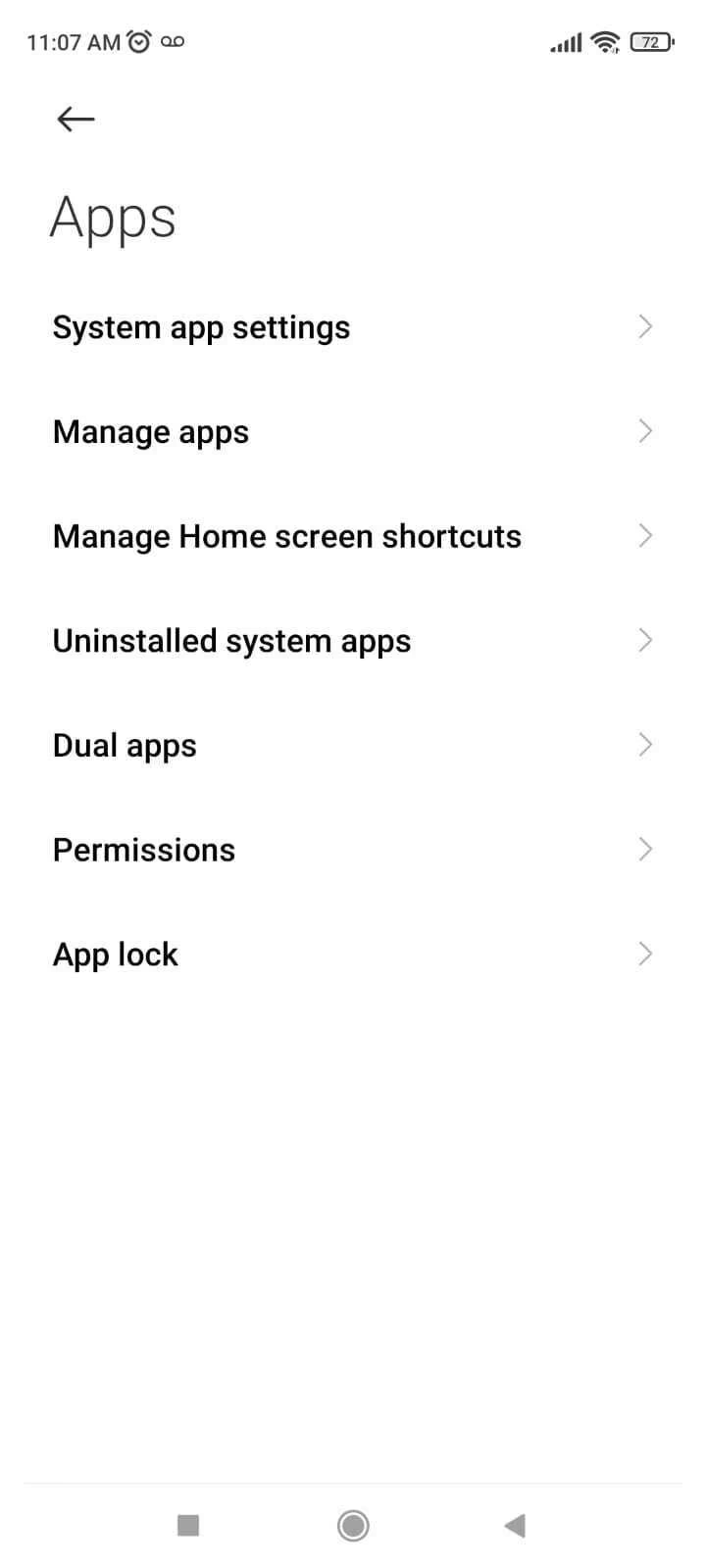
2. Once in settings, scroll down the menu and tap “Apps.”
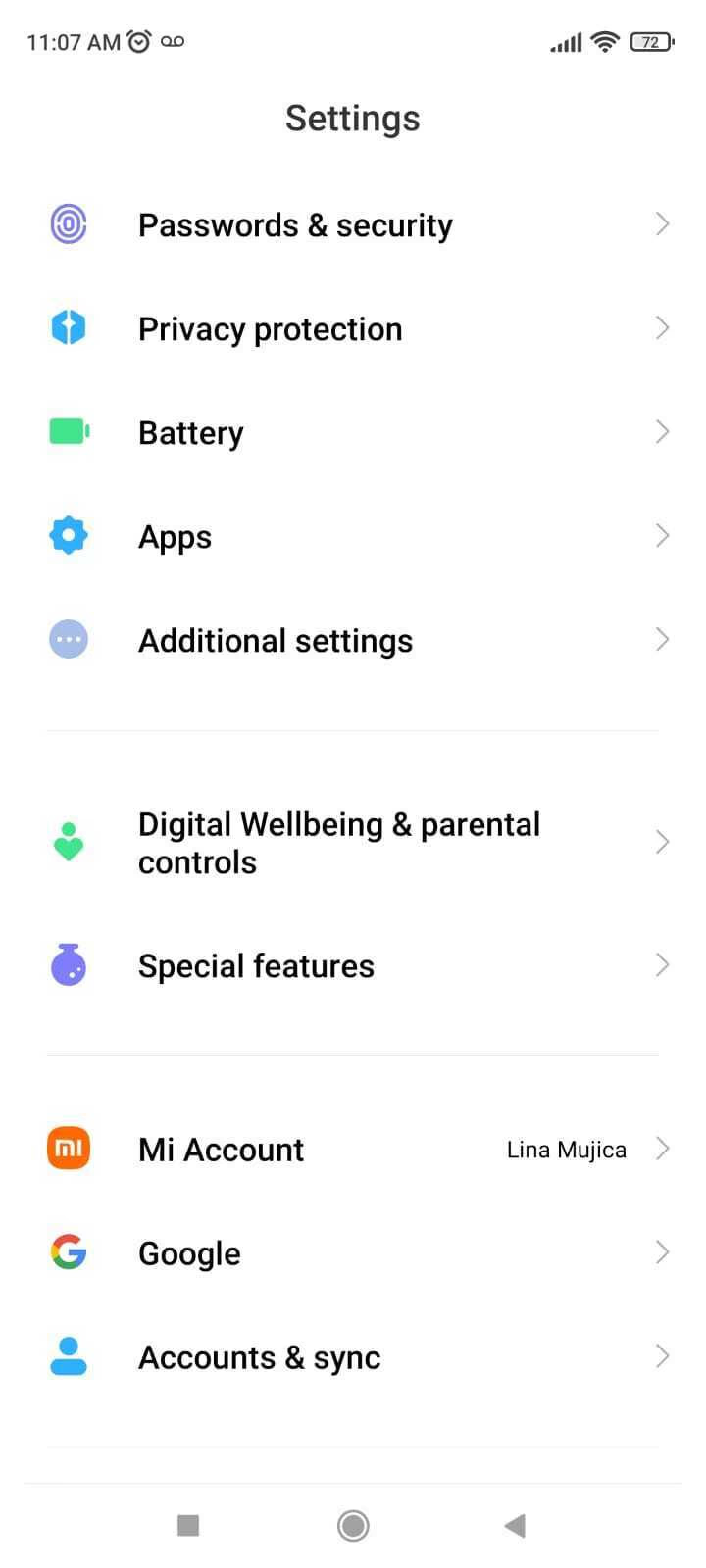
3. Then, select “Manage Apps.” You should see a list of apps on your device.
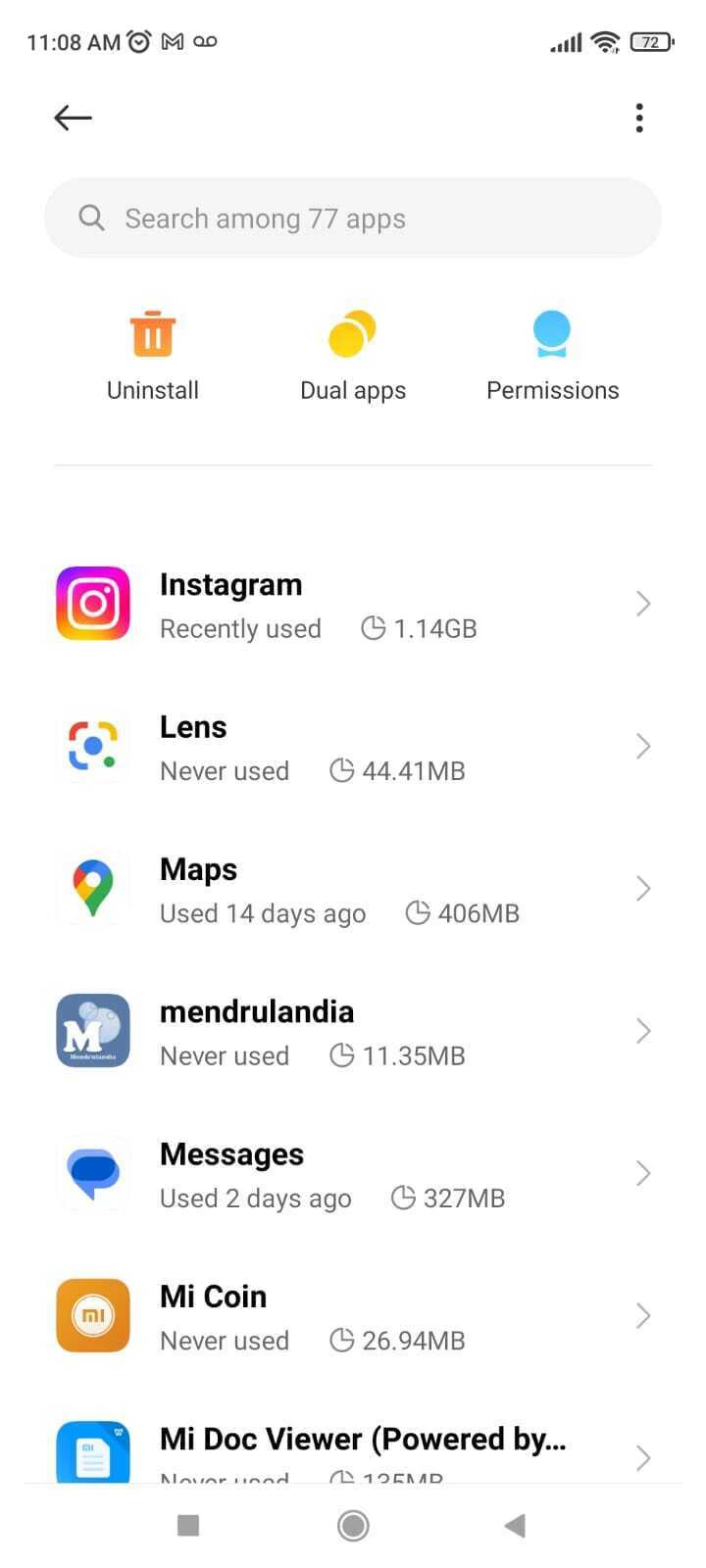
4. Search for the Instagram app and select it.
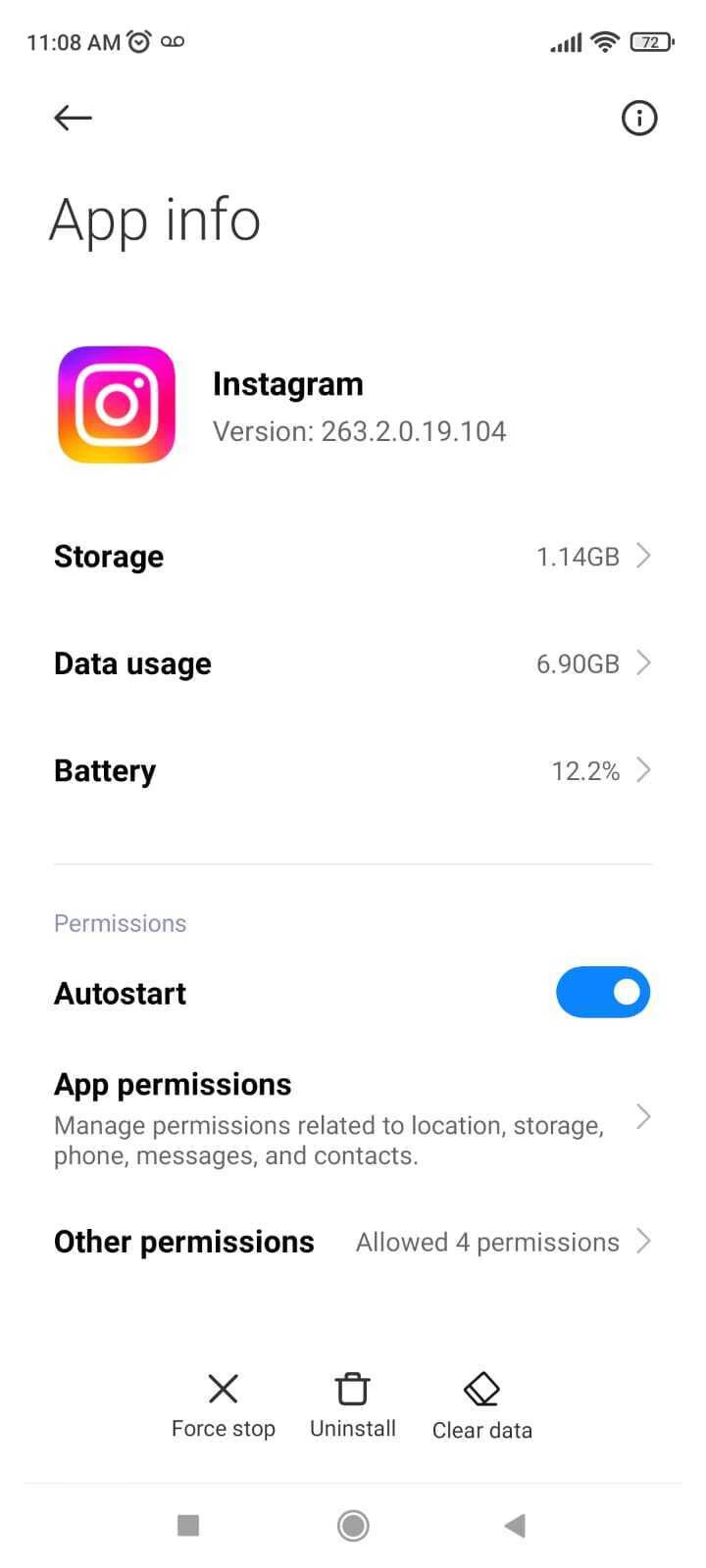
5. Once you tap on Instagram, select “Clear Data.”
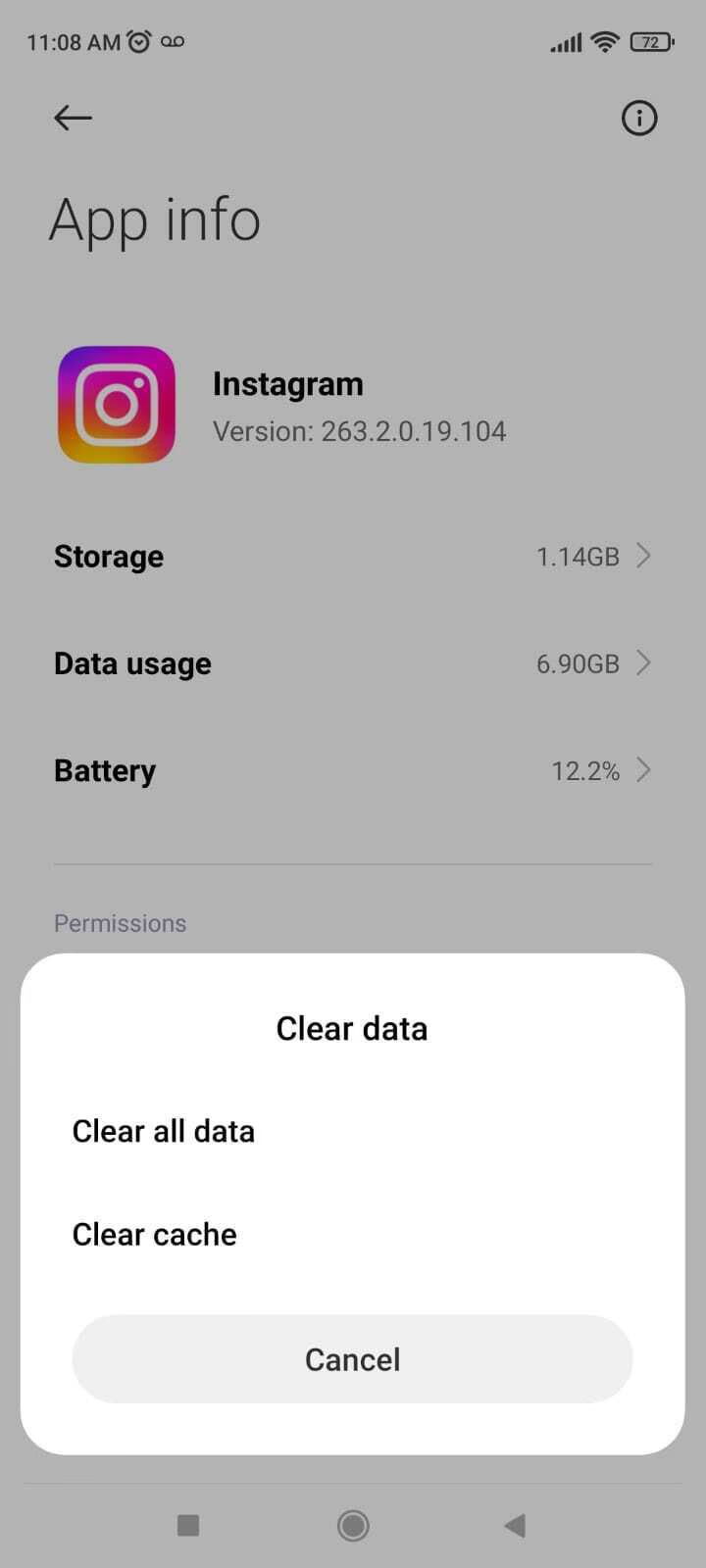
6. Your device will ask if you want to clear the cache or delete data. Tap “Clear Cache,” and you’re done.
The cache stores media files, such as Instagram posts, pages, and search results. This way, Instagram can access these files more quickly, improving user experience. You don’t need to clear your cache frequently – do it when you’re running low on storage.
When you clear your cache, you clear your search history, too. But you can delete your Instagram search history on its own. This is a good idea if you want to hide your history but don’t want to go through the effort of clearing your cache.
It’s easier than you might think to view your data on Instagram. You don’t need to do this if you’re using the app for fun, but if you’re curious, it’s interesting to look at. You can also back up your data if you’re worried about somehow losing it. Keep in mind that this method saves all your data, so it might take some storage. Here’s how to view your data on Instagram.
You don’t have to be a tech wizard to learn Instagram tricks. Check out our blog for more information on using Instagram and other apps to elevate your social media. We can answer all your Instagram-related questions so you can have the best experience on the app and keep creating unique content.
With Linktree, you can keep all your accounts and pages in one place. One link in your Instagram bio can go to your website, corresponding accounts, and more to keep all your platforms connected.

Is posting on TikTok really as lucrative as it seems? We’ve done the research: here’s what you need to know about earning money on TikTok in 2026.

Curate a safe, positive digital experience by learning how to block a hashtag on TikTok using the platform’s content filters.
A hashtag generator is one of the best Instagram growth tools around. See what the hype is about and learn how to use Linktree’s Hashtag Generator for better reach and engagement on Instagram.


