


Want to take a break from Facebook? Learn how to deactivate your Facebook account. Plus, discover a more permanent approach for deleting it altogether.
Want to take a break from Facebook? Learn how to deactivate your Facebook account. Plus, discover a more permanent approach for deleting it altogether.
Yes, Facebook, the most popular social media platform with around 3 billion users, is great for a lot of things – you can connect with friends and family, debate with strangers over random topics, and follow global trends and news.
But the social networking site has its caveats, such as privacy issues and data scandals. Not just these, but estimates also suggest constant scrolling on social media sites, such as Facebook, leads to an increasingly alarming average screen time.
So how do you safeguard your private information and reduce screen time simultaneously? A secure way to hide your Facebook account (without deleting it) and disconnect from the digital world for a while is to deactivate your account.
Take a break from social media, and learn how to deactivate your Facebook account.
Once you deactivate your Facebook account, your profile, photos, friends, and posts remain hidden from public view. And while other users can’t send you friend requests, people you’ve messaged can still see chats.
Deactivation is a great stopgap solution if you want a temporary break. And you can do it in a few easy steps. Here’s how.
You can delete your Facebook account if you want a more permanent deactivation approach. But before you do, we recommend downloading a copy of your information. After you’ve backed up your data, follow these steps to delete your account.
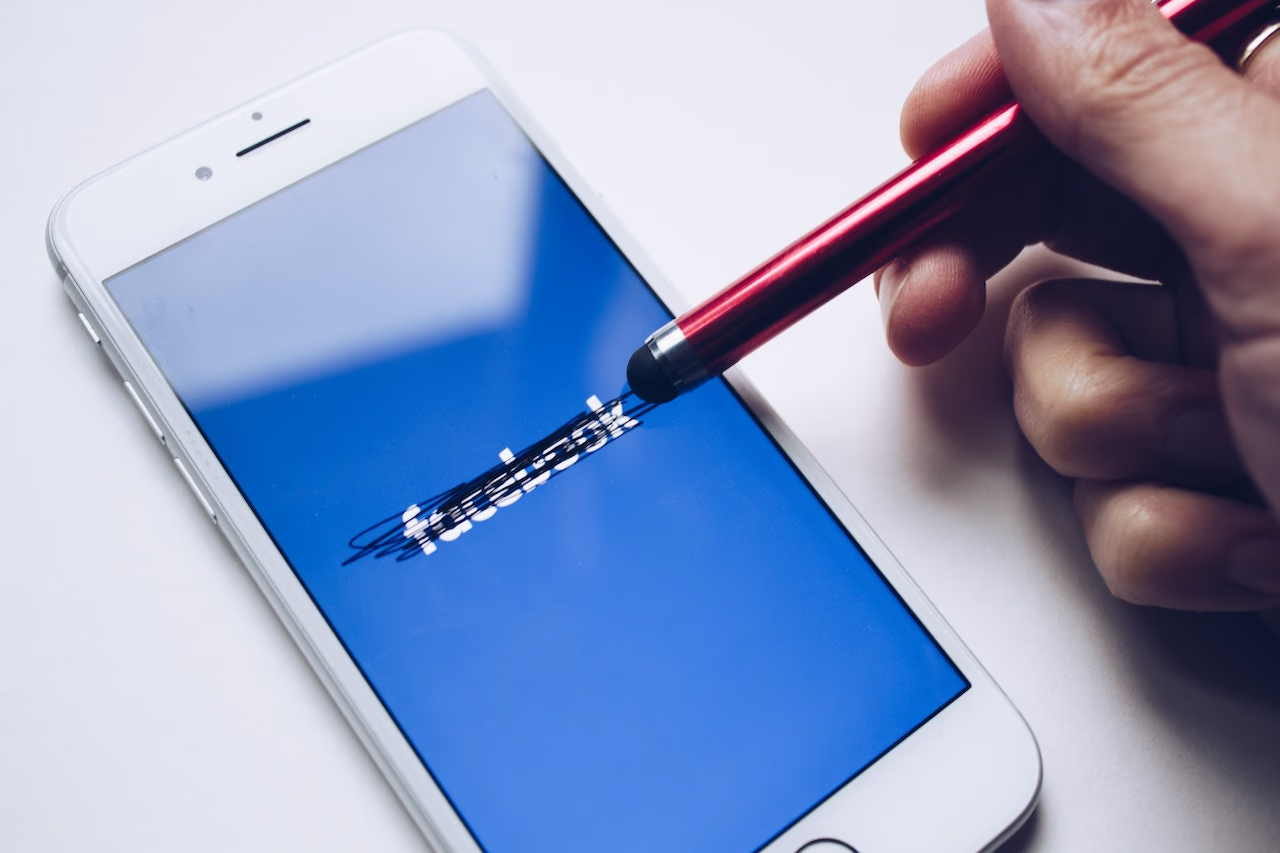
Deleting your account is a drastic and irreversible approach that permanently deletes your Facebook profile, pictures, videos, and everything else you’ve ever posted. Plus, deleting Facebook means you lose access to some of Meta’s (Facebook’s parent organization) services, such as Oculus – the company’s VR headset – and Facebook Messenger.
Deactivating, however, allows you to regain access to your Facebook account if you change your mind. Facebook temporarily hides your account, including your friend list, posts, and media. But you have peace of mind knowing your account’s waiting for you when you return.
Many users have privacy and safety concerns regarding Facebook. Deleting your account is extreme, while deactivating doesn’t remove your data from Facebook’s servers. The good news is you can leverage the following tips to control your Facebook account’s privacy and security.
If you still have a few questions about deactivating your Facebook page, put your concerns to rest with the FAQs answered below.
Deactivating your Facebook account is a temporary measure. Once you deactivate your account, it stays that way until you log in again.
Facebook might disable your account if you weren’t following its terms and community standards. If you think this was a mistake, you can fill in a form and request a review.
Unfortunately, you can’t permanently deactivate your account. Facebook only allows users to temporarily shut their accounts, hiding their information and posts from public view. But if you want a permanent discharge from Facebook, you can delete your account by following the above steps.
You can recover your Facebook account within 30 days of deleting it. After 30 days, Facebook permanently deletes all account-related data, so there’s no way of retrieving it.
Deactivating your account is a sensible step if you want a break from Facebook. Even bigger influencer accounts can take the occasional breather from the clicks and interactions. In fact, users with large followings must take extra measures to ensure their privacy and security.
The Linktree Blog is an excellent educational resource for learning how to stay safe on social networks. We explain how to change passwords, share links, and write killer bios that attract audiences without exposing personal information.
Speaking of bios, don’t forget to add a Linktree to yours. Our blog is free, and so is one of our plans! When you’re back from your deactivation vacation, get those socials up and running by connecting all your platforms in one place.

Is posting on TikTok really as lucrative as it seems? We’ve done the research: here’s what you need to know about earning money on TikTok in 2026.
Curate a safe, positive digital experience by learning how to block a hashtag on TikTok using the platform’s content filters.
A hashtag generator is one of the best Instagram growth tools around. See what the hype is about and learn how to use Linktree’s Hashtag Generator for better reach and engagement on Instagram.


