


Knowing the difference between Instagram’s restrict versus block features helps you determine how to limit interactions with your account.
Knowing the difference between Instagram’s restrict versus block features helps you determine how to limit interactions with your account.
Almost everyone has considered blocking an acquaintance on Instagram.
But, although blocking is an easy fix for quieting the content you don’t want to see, it can be awkward when you bump into that person in real life if they’ve realized what went down.
Instagram’s “Restrict” feature offers a much-needed alternative for those who want to limit interactions with someone’s account – and potential confrontation.
The app allows users to limit specific actions and prevent them from impacting your Instagram experience, whether that’s shielding your comment section from a family member’s cheeky comments or hiding your active status from a chatty friend.
Restricting followers provides many of the same benefits as blocking without severing ties. And the best parts are they’ll never know, and you can undo it anytime. Read on to learn the key differences between Instagram’s restrict versus block features and what happens when you restrict someone on Instagram.
When you block someone on Instagram, your profile becomes invisible to that user. They can no longer search for your username, visit your profile, send you messages or see any of your content from their primary or secondary accounts.
Restricting, on the other hand, limits the user’s interactions with your account without removing them as a follower. In this case, users are unaware that they’re restricted, while blocked users can spot when they’re blocked when suddenly unable to find your account.
Here are five contrasts between restricted and blocked users so you can decide which feature to use and when:
Restricted followers can comment on your posts, but their comments are only visible to them. If you want to see their comment, you have to press “See comment.” Tap “Approve” if you want their comment to be visible to the rest of your followers or ignore it for it to remain invisible. You also don’t receive notifications when they comment on your posts.
Blocked users cannot view or comment on your posts from their primary account or any new account they create.
Restricted users can still search for your username and visit your profile page. Your username is visible to them everywhere on the Instagram app, such as your comments and likes on others’ posts.
Blocked users cannot visit your profile, search for your username or see your profile anywhere on the Instagram app.
When restricted users message you, you don’t receive a notification. Instead, Instagram moves these messages from your inbox to your “Message requests” folder. The app doesn’t notify restricted users if you read their direct message (DM) without accepting the request. And if you’re in a group chat, Instagram informs you that there’s a restricted user in your conversation.
Blocked users, on the other hand, cannot access your profile or send you direct messages.
Restricted users can still view your Instagram Stories, but if they react to your story, their message will appear in your “Message requests” folder.
Blocked users cannot view your Instagram stories.
You receive notifications when a restricted account mentions you in their Instagram Stories and tags you in posts.
Conversely, blocked users cannot tag you in anything.
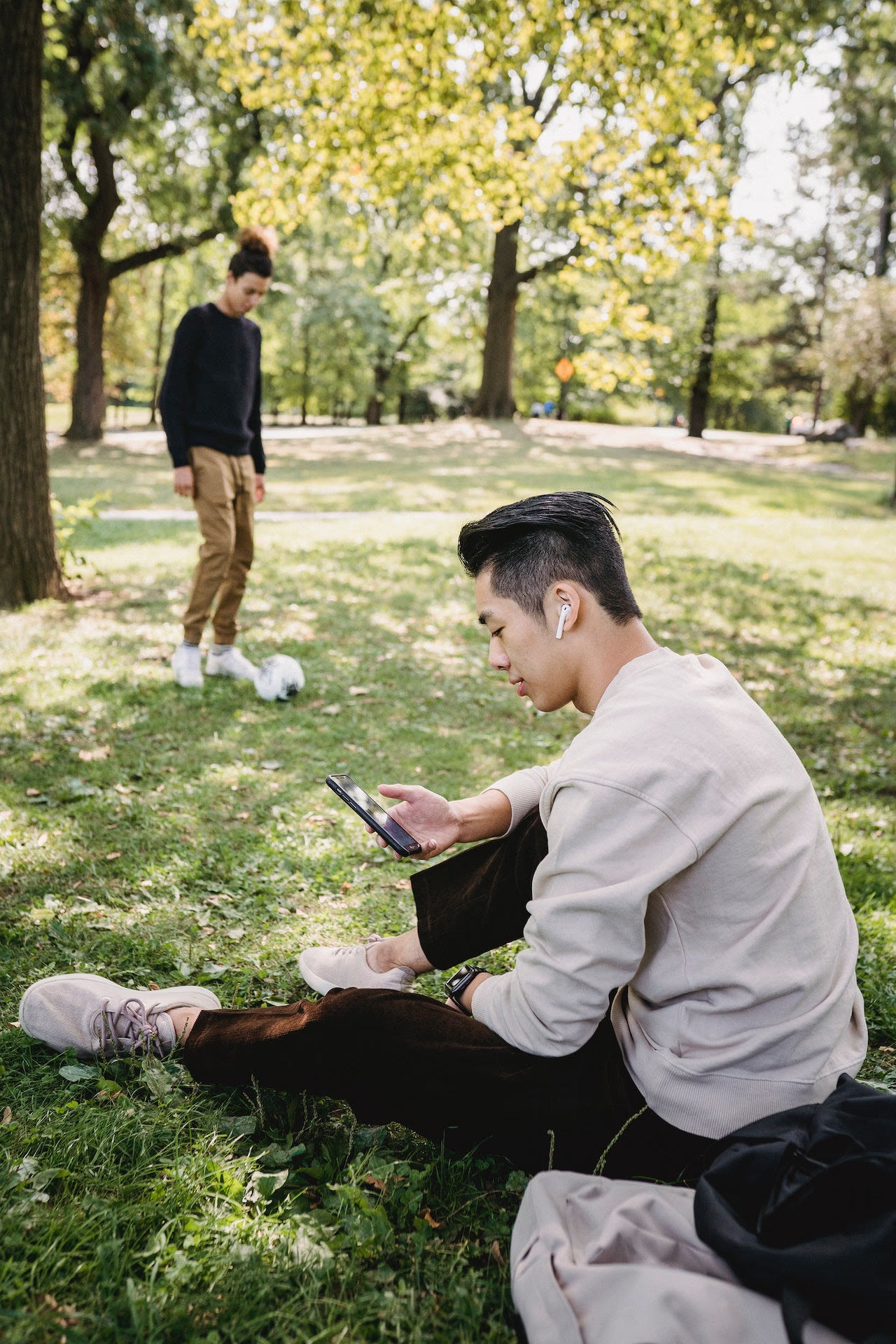
Whether your close friend sends too many memes during your workday or your coworker’s Instagram Stories don’t align with your political views, restricting someone limits your interactions without burning a bridge.
Here’s a step-by-step guide to restricting someone on Instagram and unrestricting them when the time is right:
Sometimes, blocking someone is the only way to achieve peace of mind. And no matter the reason, you deserve a positive social media experience.
Here’s a step-by-step guide on how to block a user on Instagram (and how to unblock them if you change your mind):
The great thing about Instagram is that you can curate your feed with the people you follow. And you can remove users who contradict what you want to experience on the app.
But creating a positive community isn’t always easy, especially if you’re a brand in front of the public eye. Here are a few tips for building a welcoming space on Instagram, whether you’re running a personal or business account:
When it comes to restricting versus blocking people on Instagram, use your intuition when determining the best course of action. And don’t be afraid to take any measure you feel is right.
Of course, there’s still plenty more to learn about Instagram – and our blog is a great resource for all things social media. If you’re an avid Facebook user butting heads with someone you’d like to keep away from your account, we can teach you how to block someone on Facebook. And if you want to go incognito on Instagram, we can show you how to turn on vanish mode and hide your likes.
Is posting on TikTok really as lucrative as it seems? We’ve done the research: here’s what you need to know about earning money on TikTok in 2026.
Curate a safe, positive digital experience by learning how to block a hashtag on TikTok using the platform’s content filters.
A hashtag generator is one of the best Instagram growth tools around. See what the hype is about and learn how to use Linktree’s Hashtag Generator for better reach and engagement on Instagram.


