


Learn how to use Linktree’s Audience Manager to segment your data and form better connections with your fans.
Learn how to use Linktree’s Audience Manager to segment your data and form better connections with your fans.
Treating all followers the same leaves so much on the table—think: stronger post engagements, deeper connections and most importantly, more revenue.
To start seeing results, you need to harness segmentation. By splitting your audience into clearly defined categories and adding tags to user profiles, you’re unlocking the power of smarter, more aligned communication.
When you use Linktree’s Audience Manager, you can do exactly this and more. Audience Manager is a collection of tools designed specifically to help creators (like you) build a sustainable business. It’s extremely easy to use, and it’s located right within your Linktree dashboard.
Audience Manager is a centralized hub designed to help you collect, manage and utilize contacts and leads. After setting up a form to collect email sign-ups on your Linktree, you can use Audience Manager to see who’s engaging with your forms.
Once you’ve built a database, you can use Audience Manager to tag and segment your data. This is the key to communicating more effectively with your audience. By customizing your outreach, you can build trust and foster connections that are more likely to translate into conversions.
Here’s why a clear lead capture and management strategy is important for every creator:
Linktree’s Audience Manager is packed with possibilities. Here are five easy ways to use it to grow your audience, build connections and drive revenue as a creator using Audience Manager.
If you’re looking for a way to deliver tailored content to your audience based on their interests, Audience Manager makes this possible in just a few clicks.
Once you’ve collected leads using a Linktree Form, tag them based on the content they signed up for, such as podcasts, digital products, physical merch or events. Then, you can use those tags to speak more effectively to each audience segment.
This will look different for every creator, but here are a few ideas to get you started:
Are your marketing efforts not landing the way you’d like? Maybe it’s time to separate high-intent leads from passive followers. After all, there’s a big difference between communicating with unengaged followers and those with a strong intent to convert.

When you use Linktree’s Audience Manager to tag your database, you can easily filter leads by engagement type. If someone has only signed up to your mailing list, they might go in one bucket, whereas those who have taken more meaningful actions, like downloading a freebie or making a purchase, can go in another.
Then, when you’re ready to market to each group, you can concentrate your efforts where they’ll have the most impact. Send broader nurture-style emails to new subscribers, and targeted, purchase-driven ones to those with a clearer intent to purchase.
This strategy also lets you prioritize following up with the people who are most likely to convert: your hottest warm leads.
Rewarding VIPs is a common marketing tactic for a reason. Not only does it build trust post-sale, but it also encourages ongoing conversions and long-term loyalty.
Linktree’s Audience Manager features several tools designed to help you give back to your most loyal fans. By tagging VIP customers, you can send them exclusive content via email, whether that’s early access to your latest drop or an invitation to join a beta program.
Within Audience Manager, you’ll also find subscriber-focused tools that make it easy to separate leads from customers. Display a subscriber-only discount code right on your Linktree or use gated content that’s only accessible to your most dedicated fans.
One of Linktree Audience Manager’s most valuable features is its third party integration support. It lets you automatically push your tagged contacts into Mailchimp, Kit, Klaviyo or Google Sheets, streamlining the data management process.
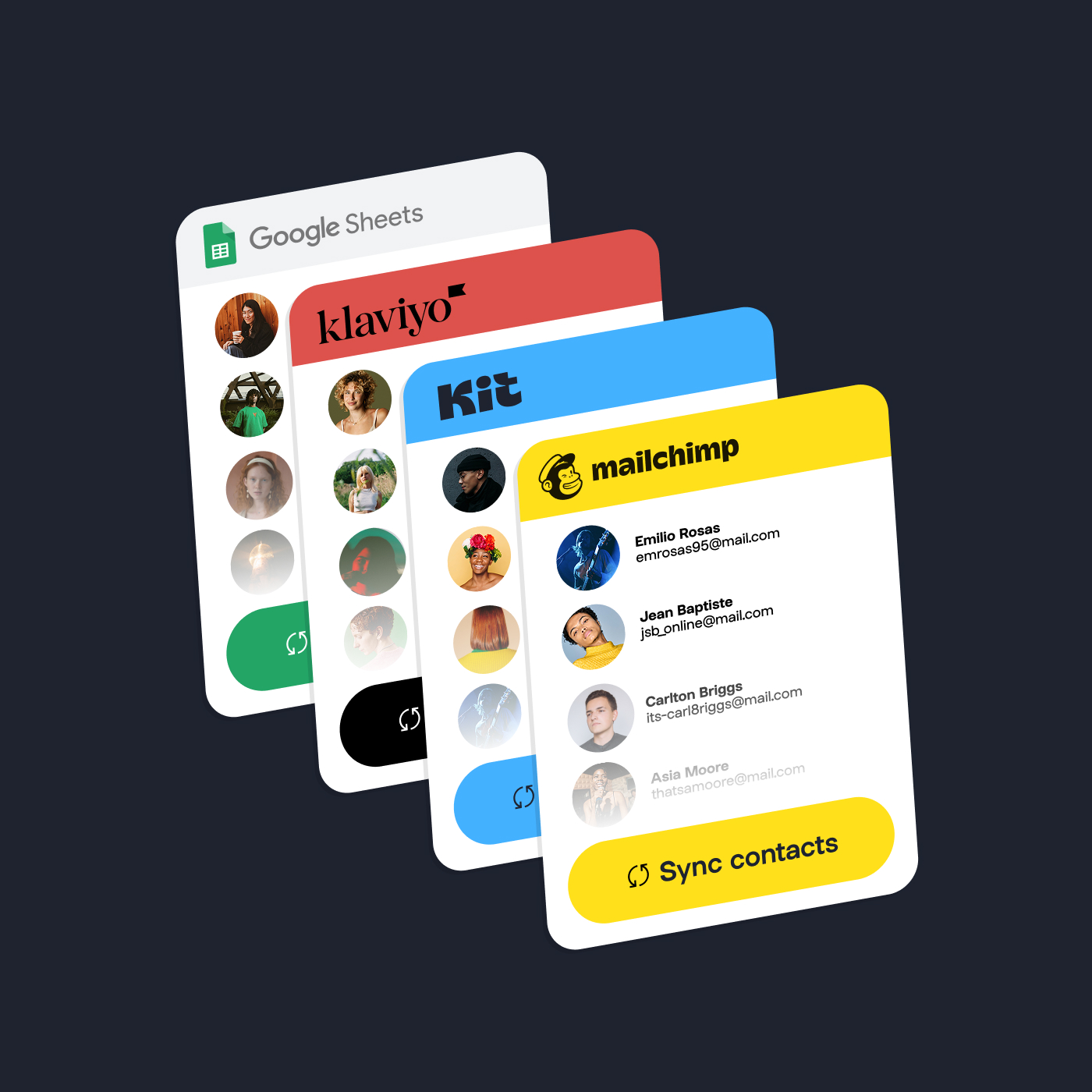
If you really want to streamline your back-end operations, this is the tool for you. Free up time you might’ve spent manually tagging your data or exporting and importing it into your email client, and instead, use it to create and send targeted email sequences.
To connect your Mailchimp, Kit, Klaviyo, or Google Sheets account to Audience Manager, follow these steps:
💡 Linktree Tip: Keep in mind that Audience integrations are only available on Linktree Pro and Premium plans.
Using Linktree’s Audience Manager, dive into your data to figure out what’s working – and better yet, what’s not.
By analyzing your performance regularly, you can optimize your outputs and ensure you’re hitting the right marks with your audience.
From Audience Manager, it’s easy to see your overall analytics, with stats on how many subscribers you have, which links they’re clicking, and where your traffic is coming from.
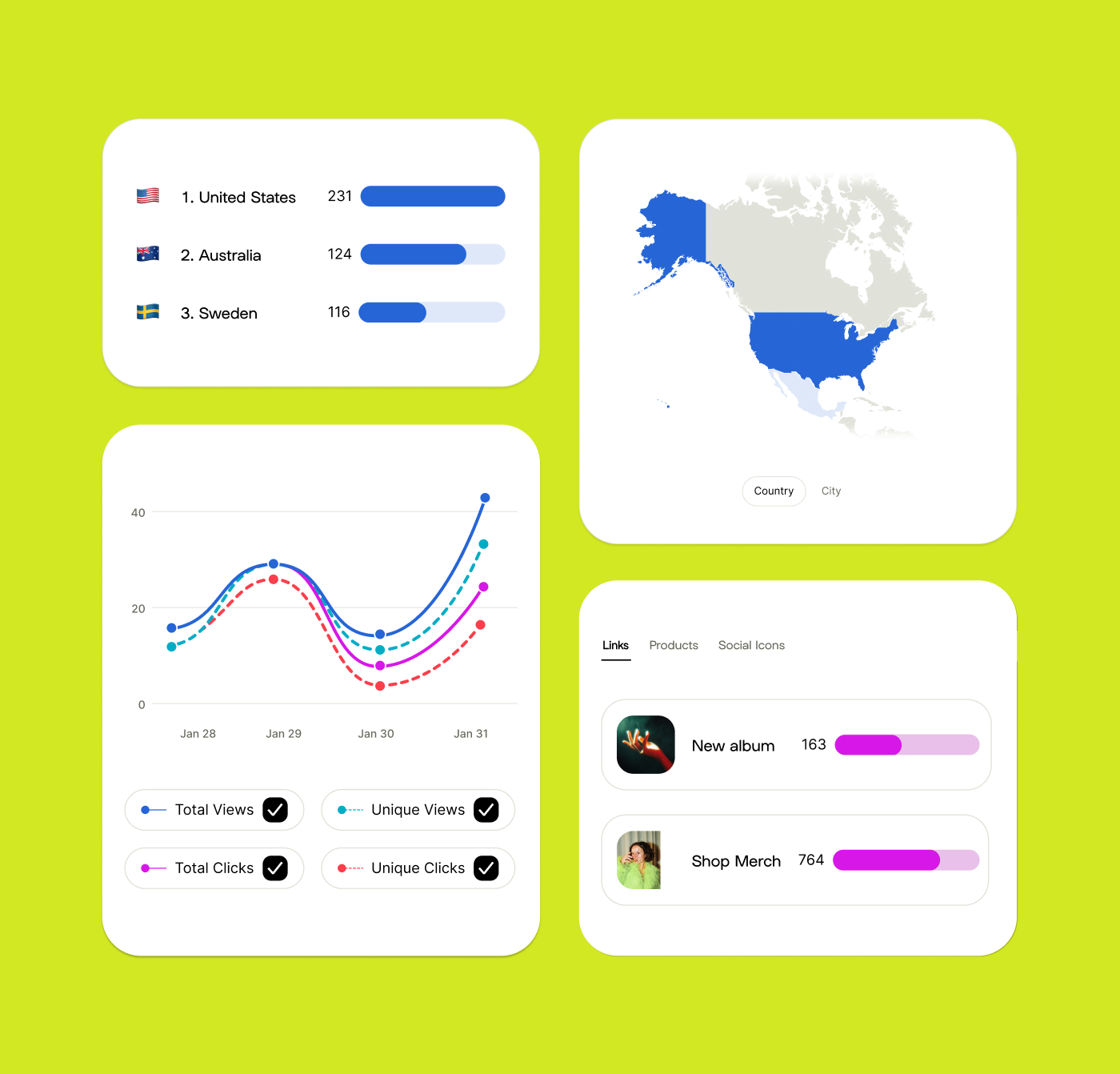
Use this data to shape your testing parameters, then adjust your Linktree setup and messaging based on what’s working. For example, you might switch out underperforming CTAs or restructure a form to capture different information.
With Audience Manager on your side, your Linktree is way more than a link-in-bio tool – it’s an intelligence hub that provides key insights into your customer base. Use segmentation to build deep relationships with your audience, whatever they’re interested in, and scale your revenue in the process.
Ready to stop guessing and start engaging meaningfully with your fans?
Try Audience Manager now (Pro and Premium plans only) and grow a strong, connected audience that’s yours to own.
{{linktree-shops="/s/internal/style-guide/components"}}

Is posting on TikTok really as lucrative as it seems? We’ve done the research: here’s what you need to know about earning money on TikTok in 2026.
Curate a safe, positive digital experience by learning how to block a hashtag on TikTok using the platform’s content filters.
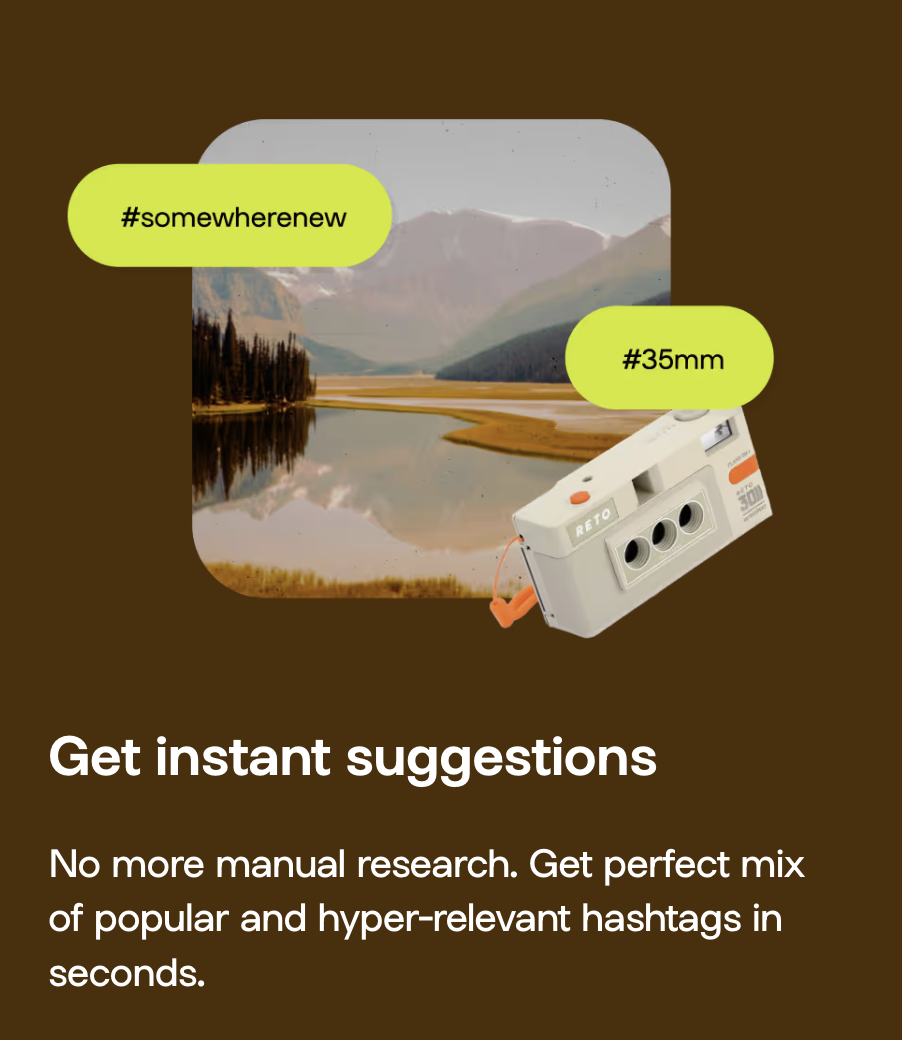
A hashtag generator is one of the best Instagram growth tools around. See what the hype is about and learn how to use Linktree’s Hashtag Generator for better reach and engagement on Instagram.


